Categories Page Overview
The Categories page is your at-a-glance view of how your inventory breaks down by device type. It's also where you add, edit, and remove categories.
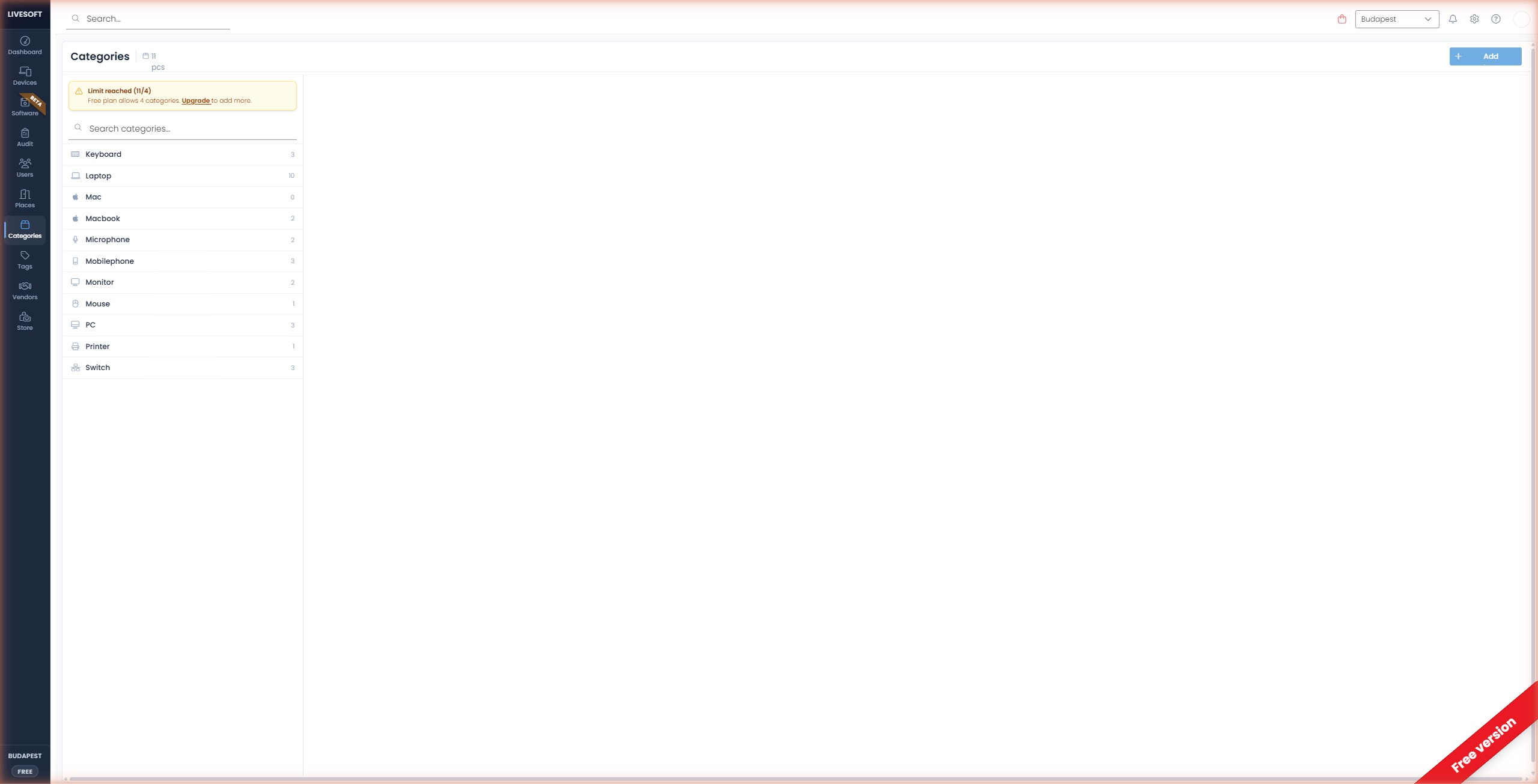
The page is split in two — the list of categories on the left, and the devices belonging to the selected category on the right.
Category list (left)
Each tile shows the category name, the category icon in the bottom-left, and the device count in the bottom-right. Click a tile to load its devices on the right.
Device list (right)
When a category is selected, every device that belongs to it appears in a table with these columns:
| Column | Description |
|---|---|
| Device name | Name of the device |
| Serial number | Manufacturer serial number |
| Barcode | Assigned barcode |
| Warranty | Warranty expiration date |
| Assigned | User the device is assigned to |
| Tag | Tags applied to the device |
Category actions
The top-right corner of the page has the actions for the currently selected category:
- Pencil icon — Edit the selected category.
- Bin icon — Delete the selected category.
The number of categories you can create depends on your subscription tier — see Create a New Category for the limits.